
TL;DR
Add transparent=True to savefig():
plt.savefig('chart.png', transparent=True)
That's it. The figure and axes backgrounds are set to fully transparent in the exported PNG.
Why it matters
Transparent PNGs drop cleanly onto any coloured slide deck, website, or document without the default white box around the chart.
The transparent flag
plt.savefig() and fig.savefig() both accept transparent=True. It overrides the figure and axes face colours at export time only — your interactive plot window is unaffected.
import matplotlib.pyplot as plt
import numpy as np

x = np.linspace(0, 2 * np.pi, 200)

fig, ax = plt.subplots(figsize=(7, 4))
ax.plot(x, np.sin(x), color='#2A9D8F', lw=2.5)
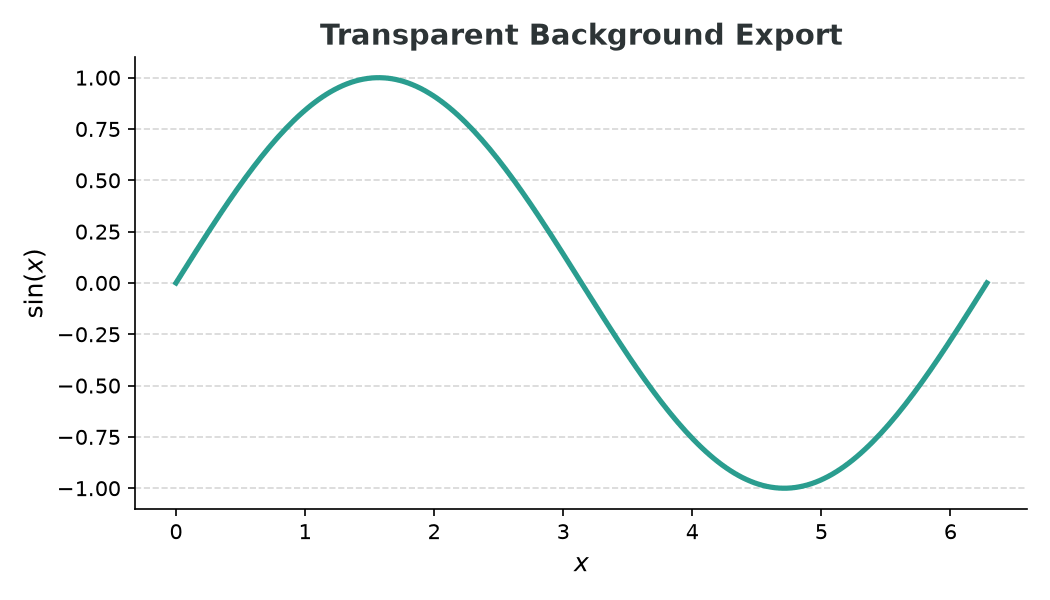
ax.set_title('Transparent Background Export')

plt.savefig('chart.png', dpi=150, transparent=True)
The dpi argument is unrelated to transparency but worth setting explicitly for crisp output — 150 is a good default for web.
Controlling transparency per element
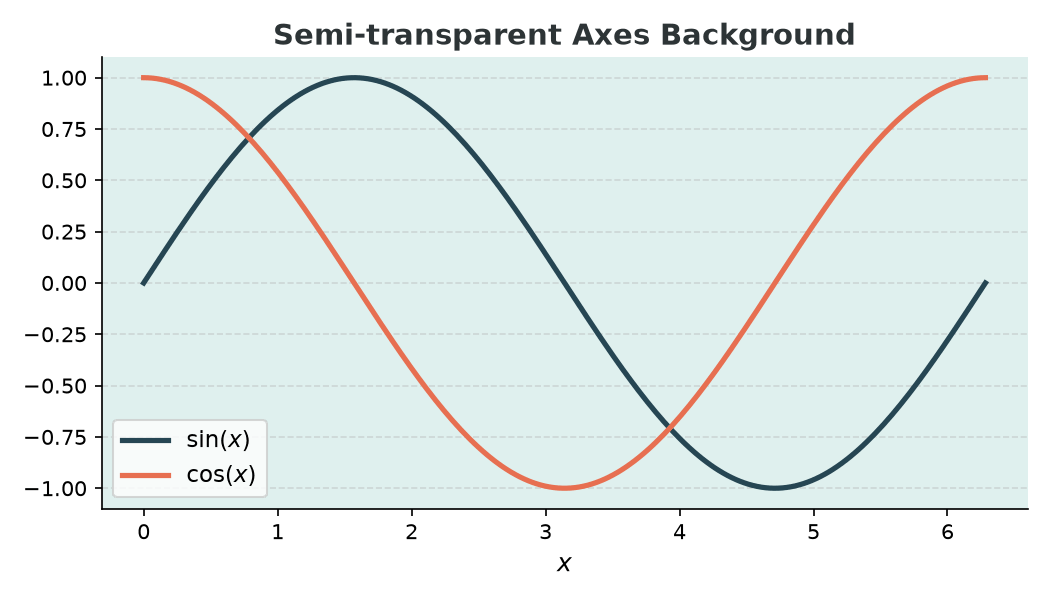
If you only want the figure background transparent (not the axes area), or you want a semi-transparent tint, set the alpha on each patch directly:
fig.patch.set_alpha(0)      # figure background -> fully transparent
ax.patch.set_alpha(0.15)    # axes area -> lightly tinted
ax.patch.set_facecolor('#2A9D8F')
Then save without transparent=True — otherwise it overrides your manual settings:
plt.savefig('chart.png', dpi=150) # transparent=False (default)
Checking the result
Open the exported PNG in a browser or image viewer that shows a checkerboard for transparent pixels to verify it worked. On the command line:
from PIL import Image
img = Image.open('chart.png')
print(img.mode)   # should print 'RGBA', not 'RGB'
An RGBA mode confirms the alpha channel was saved.
Common pitfalls
Saving as JPEG — JPEG does not support transparency. Always use PNG (or SVG/PDF) when you need a transparent background.
facecolor set in rcParams — if you have figure.facecolor or axes.facecolor set in a style sheet, transparent=True still overrides them at save time. But if you set fig.patch.set_facecolor() manually in code, you'll need to also set fig.patch.set_alpha(0) or use transparent=True.
Gridlines and spines — these are drawn on top of the background and remain fully opaque unless you reduce their alpha separately.