
Create each page with st.Page, pass the list to st.navigation, and call .run() on the page it returns. The script you launch becomes a router that runs on every interaction, and Streamlit draws the menu. This post targets Streamlit 1.67.
Quick Example
Pages can be ordinary functions, so a two-page app fits in one file. Save this as app.py and run streamlit run app.py. It uses simulated sales for a plant nursery.
import numpy as np
import pandas as pd
import streamlit as st

rng = np.random.default_rng(8)
weeks = pd.date_range("2026-03-02", periods=16, freq="W-MON")
sales = pd.DataFrame(
    {name: rng.poisson(mean, 16) for name, mean in [("Herbs", 60), ("Succulents", 45), ("Ferns", 25)]},
    index=weeks,
)


def overview():
    st.title("Nursery Overview")
    cols = st.columns(len(sales.columns))
    for col, name in zip(cols, sales.columns):
        col.metric(name, f"{sales[name].sum():,} sold")
    st.line_chart(sales, color=["#2b8a3e", "#e8590c", "#5f3dc4"])


def weekly_detail():
    st.title("Weekly Detail")
    plant = st.selectbox("Plant", sales.columns)
    st.area_chart(sales[plant], color="#2b8a3e", y_label="Plants sold")


page = st.navigation([
    st.Page(overview, title="Overview", icon=":material/potted_plant:"),
    st.Page(weekly_detail, title="Weekly detail", icon=":material/calendar_month:"),
])
page.run()
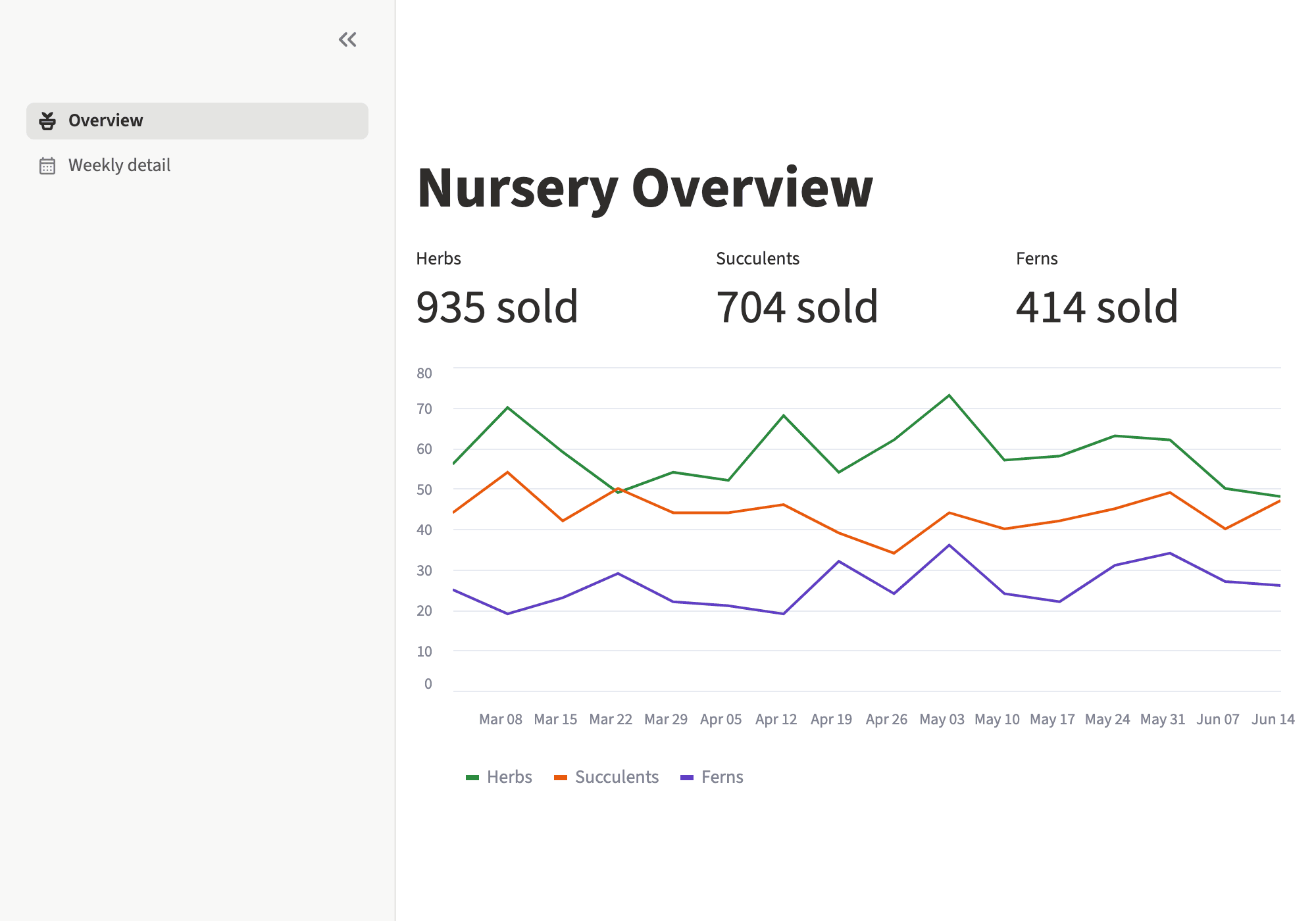
The first page in the list is the default and is served at the root URL. A function page gets its URL from the function name, so the second page is at /weekly_detail. Set url_path="weekly" to choose your own.
Put Each Page in Its Own File
Larger apps are easier to manage with one file per page:
nursery/
├── streamlit_app.py      # entry point: shared elements and navigation
└── app_pages/
    ├── overview.py
    ├── inventory.py
    └── settings.py
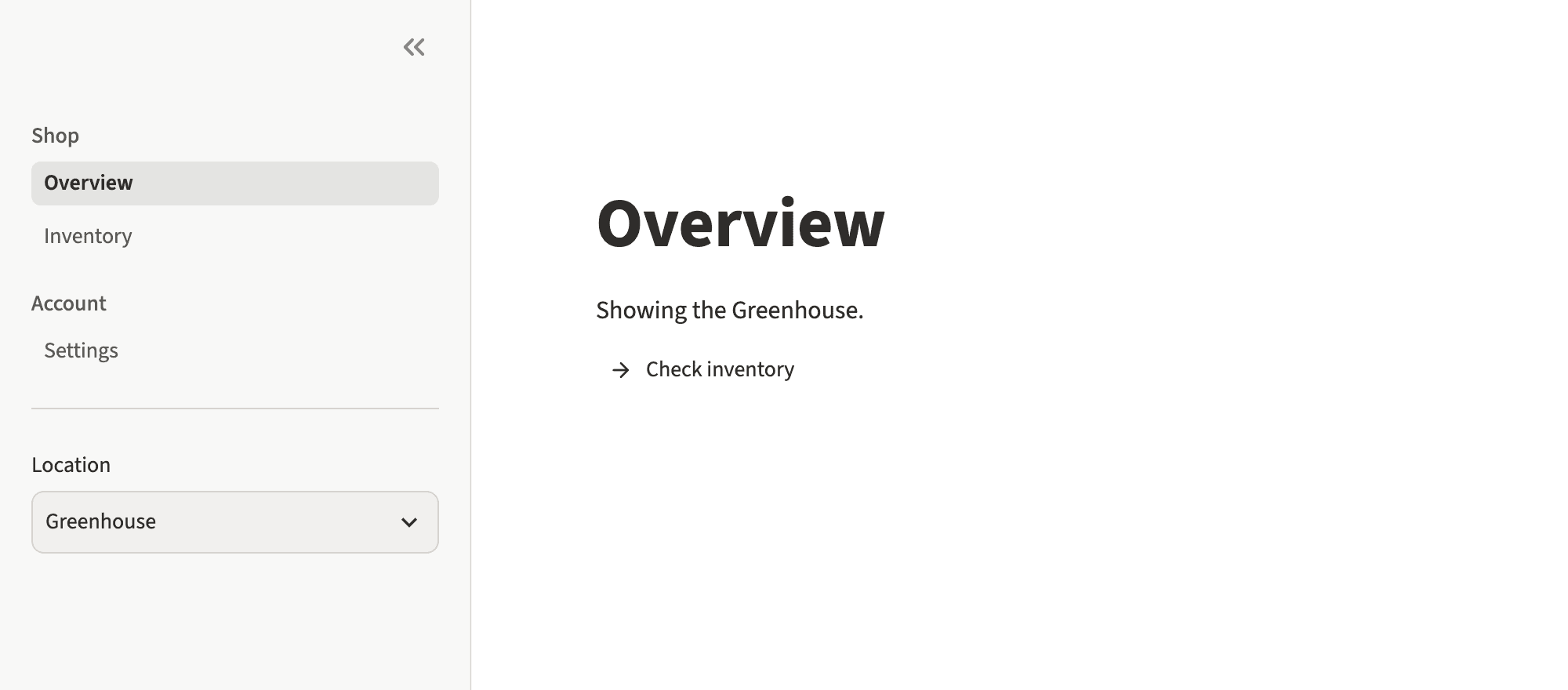
The entry point lists the files, grouped into sections with a dictionary. Run it with streamlit run streamlit_app.py:
import streamlit as st

st.set_page_config(page_title="Nursery", layout="wide")

pages = {
    "Shop": [
        st.Page("app_pages/overview.py", title="Overview", default=True),
        st.Page("app_pages/inventory.py", title="Inventory"),
    ],
    "Account": [
        st.Page("app_pages/settings.py", title="Settings"),
    ],
}
page = st.navigation(pages)

st.sidebar.selectbox("Location", ["Greenhouse", "Market stall"], key="location")

page.run()
A page file is a normal Streamlit script with no navigation code. This is app_pages/overview.py:
import streamlit as st

st.title("Overview")
st.write(f"Showing the {st.session_state.location}.")
st.page_link("app_pages/inventory.py", label="Check inventory", icon=":material/arrow_forward:")
app_pages/inventory.py:
import streamlit as st

st.title("Inventory")
st.write(f"Stock at the {st.session_state.location}")
st.dataframe({"plant": ["Basil", "Aloe", "Boston fern"], "in stock": [34, 21, 9]})
And app_pages/settings.py:
import streamlit as st

st.title("Settings")
st.toggle("Low-stock alerts", key="alerts", persist_state="session")
How Do I Share Data Between Pages?
Put shared widgets in the entry point, give them a key, and read the value from st.session_state on any page. Because the entry point runs on every page, the widget stays alive and keeps its value. That's what the Location select box does above.
A widget defined inside a page is different: Streamlit drops its value when you switch to another page. Add persist_state="session" to keep it, as the settings toggle does. Values you assign yourself, such as st.session_state.cart = [], are never dropped. The session state post covers the details.
Share loaded data with a @st.cache_data function in a separate module that each page imports.
Link and Redirect Between Pages
st.page_link draws a link, and st.switch_page changes page from code, for example after a form is saved:
if st.button("Save and go to overview"):
    st.switch_page("app_pages/overview.py", query_params={"saved": "yes"})
Both take a file path relative to the entry point, or the st.Page object. Use the object for function pages. The target page can read st.query_params["saved"].
Move the Menu to the Top or Hide It
| Setting | Result |
|---|---|
st.navigation(pages) |
Menu in the sidebar (the default) |
st.navigation(pages, position="top") |
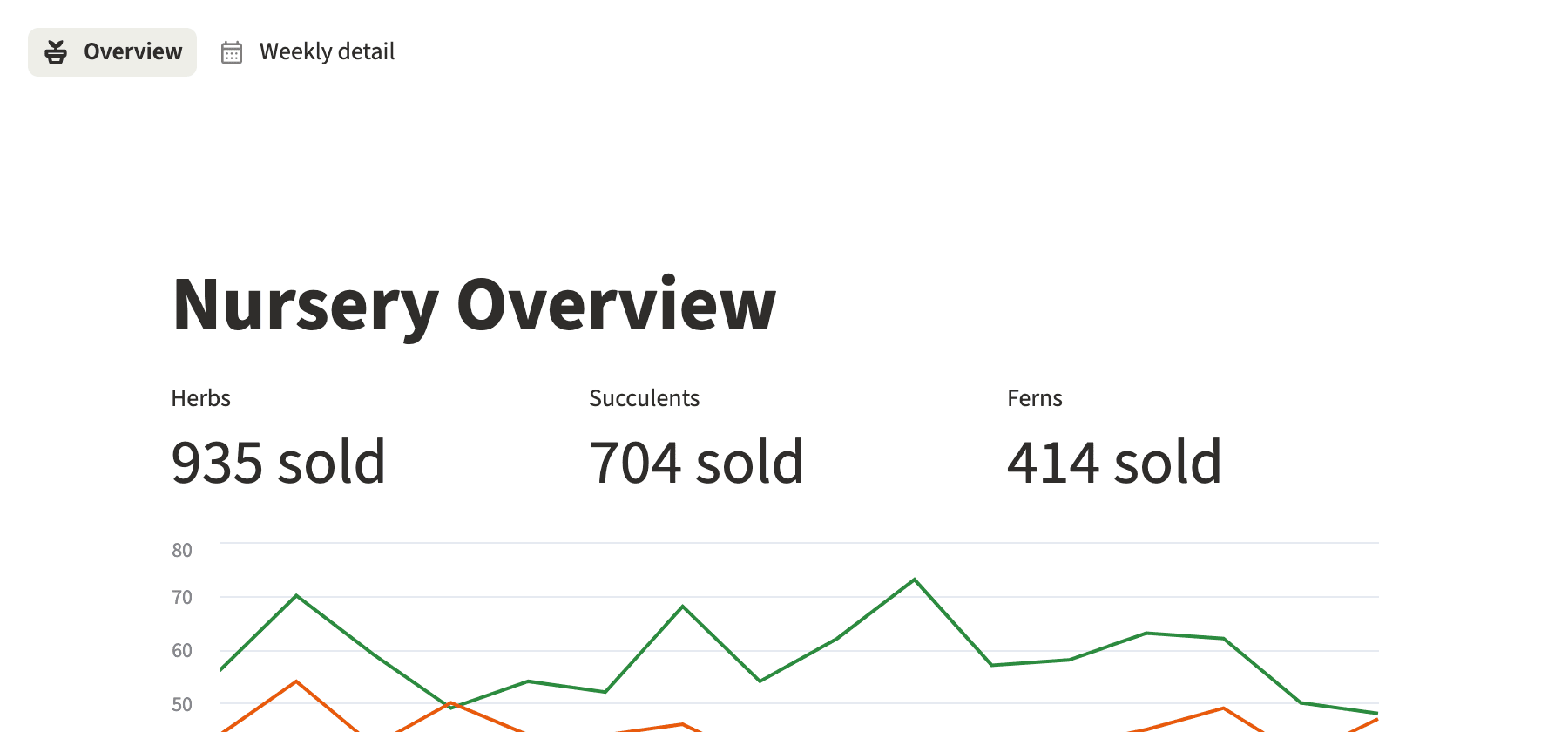
Menu across the top of the app |
st.navigation(pages, position="hidden") |
No menu; build your own with st.page_link |
st.Page(..., visibility="hidden") |
Page works by link or URL but isn't listed |
Show Different Pages to Different Users
The page list is rebuilt on every run, so you can change it based on session state:
import streamlit as st


def home():
    st.title("Home")
    st.toggle("I'm a manager", key="is_manager", persist_state="session")


def payroll():
    st.title("Payroll")


pages = [st.Page(home, title="Home")]
if st.session_state.get("is_manager"):
    pages.append(st.Page(payroll, title="Payroll"))

st.navigation(pages).run()
A page that isn't in the list can't be opened by typing its URL. The toggle is only a demonstration; a real app should set the role from a login, for example st.login.
st.navigation vs the pages/ Folder
st.navigation |
pages/ folder |
|
|---|---|---|
| Defining pages | In code | Any script in pages/ becomes a page |
| Titles, icons, order | st.Page arguments and list order |
Taken from file names |
| Sections and dynamic menus | Yes | No |
| Shared elements | Written once in the entry point | Repeated or imported in each page |
Use st.navigation for new apps. The folder approach still works for quick projects, but Streamlit ignores pages/ once an app calls st.navigation, so name your own folder something else, such as app_pages/.
Troubleshooting
- The page is blank apart from the menu: you didn't call
.run()on the returned page. - Two pages have the same URL: two files or functions share a name. Give one a
url_path. set_page_configtitles look wrong: call it in the entry point for shared settings, and again in a page only to override them.- A value disappears after switching pages: the widget needs
persist_state="session", or move it to the entry point.